
The 5-minute Phone Declutter: Organize Your Apps and Mind
Phones have become the central hub for communication, work, and entertainment in modern life. With constant notifications, apps, and downloads, devices can quickly feel cluttered and overwhelming. A cluttered phone can create mental fatigue, making it harder to focus on tasks or relax during downtime. Taking just a few minutes to declutter can significantly improve both device performance and personal productivity. Simple, consistent organization keeps important apps and notifications accessible while removing distractions. In this article, practical steps are shared to help declutter your phone efficiently and restore a sense of order.

Step 1: Clear All Notifications (1 minute)
Archive or Dismiss Everything
Notifications often pile up unnoticed, causing distraction and stress. Start by archiving or dismissing every pending notification, whether from messaging apps, social media, or other services. Removing all alerts in one go provides a clean slate for the day and allows important messages to stand out more clearly. A quick scan of your notification history can reveal which apps generate excessive alerts. This process also helps identify which notifications are essential and which are not. Over time, regularly clearing notifications prevents them from accumulating unnecessarily. It may only take a minute, but the mental relief is significant.
Turn Off Unnecessary Alerts for Good
Beyond clearing existing notifications, managing alert settings ensures your phone stays quieter in the future. Evaluate which apps truly need real-time notifications and which can operate silently or with summary alerts. Turning off unnecessary alerts reduces constant interruptions and preserves focus during work or personal time. Many apps allow granular control over sound, vibration, and banner settings. Configuring notifications properly also saves battery life and reduces cognitive overload. This habit reinforces a sense of control over your device and daily routine. Once unnecessary alerts are disabled, future decluttering becomes much easier.
Step 2: Clean Your Home Screen (2 minutes)
Keep Only Daily Essential Apps
Your home screen should display only the apps used most frequently. Essential apps might include messaging, email, calendar, navigation, and work tools. By limiting the visible icons, you reduce visual clutter and improve usability. Fewer distractions help focus attention on tasks at hand. Prioritizing core apps also ensures faster access during critical moments. The goal is to create a clean, functional workspace that matches your daily workflow. This small adjustment has a major impact on both productivity and mental clarity.
Group Others into Simple Folders
For apps not needed daily but still important, create clearly labeled folders. Grouping related apps together, such as “Media,” “Shopping,” or “Finance,” helps locate them quickly without overcrowding the home screen. Consistent organization prevents repeated searches and improves efficiency. Avoid creating too many nested folders, which can become confusing over time. Periodically review folder contents to remove apps no longer used. A well-organized screen balances accessibility and simplicity, making your phone more intuitive to navigate. Visual order encourages calmer, more deliberate interactions with the device.
Step 3: Uninstall or Hide Unused Apps (1 minute)
Delete Apps You Haven't Used This Month
Unused apps take up storage, slow performance, and add unnecessary complexity. Identify applications that haven’t been used in the past month and uninstall them. Even small apps collectively consume substantial space over time. Removing these apps frees storage for essential tools, photos, or media. Fewer apps also simplify notifications and reduce mental clutter. This quick action ensures that every app on your phone has a purpose and contributes to daily tasks. Regularly reviewing and trimming apps maintains long-term efficiency.
Disable Pre-Installed Apps You Don't Need
Many smartphones come with pre-installed apps that are seldom used. Disabling these apps prevents them from running in the background and consuming resources. While they may remain visible, their impact on storage and battery is minimized. Disabling unnecessary system apps can improve overall device speed and responsiveness. It also reduces clutter in search results when locating specific tools. This practice is particularly useful for maintaining a clean digital workspace without compromising core functionality. Gradual refinement of pre-installed apps enhances both performance and organization.
Step 4: Organize Your Dock (1 minute)
Place Your Top 4 Productivity Tools Here
The dock is the most accessible section of your phone and should feature only your most-used apps. Common choices include messaging, email, calendar, and notes apps. Keeping the dock limited to four tools ensures rapid access without scrolling or searching. Arranging apps logically within the dock minimizes accidental taps and frustration. Rotating apps occasionally based on changing priorities can optimize usability. Maintaining a tidy dock supports smoother daily workflows and better focus on essential tasks. This small adjustment reinforces intentional phone use.
Keep It Clean and Consistent
Consistency is key to making the dock effective. Avoid overcrowding it with rarely used apps, which defeats its purpose. The dock should remain a stable, reliable space for the tools you depend on most. Periodic review ensures the selected apps still reflect current habits and needs. A clean, consistent dock improves the visual appeal and efficiency of the home screen. It also reduces decision fatigue when navigating your phone. Simple, predictable layouts enhance both usability and peace of mind.
Conclusion
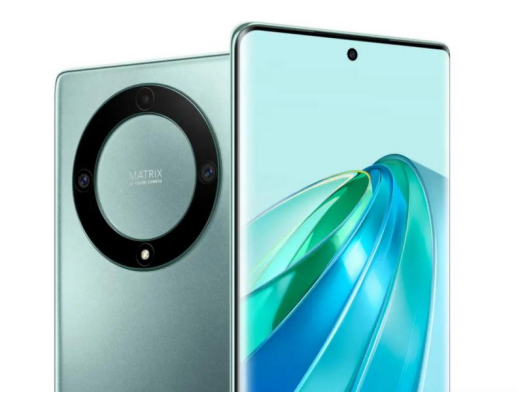
A quick phone declutter can instantly improve focus and efficiency. Organizing apps, clearing notifications, and arranging your dock makes daily use smoother and less stressful. For people who take lots of photos, save videos, or use multiple apps, choosing a phone with ample storage—like the HONOR X9a—helps maintain this order effortlessly. With enough space to keep everything you need, decluttering becomes less about constantly deleting and more about keeping your digital life organized.
-
Latest
 AI Features Changing the Smartphone Experience
Artificial intelligence (AI) is making smartphones smarter, more intuitive, and personalized. Artificial intelligence enables smartphones to predict user behavior and perform tasks more effectively. A...
-
Next
 What Makes a Smartphone Feel “Comfortable” to Use Daily?
A smartphone feels comfortable to use daily when it aligns naturally with how people think, move, and interact throughout their routines. Comfort is not defined by one feature alone; it emerges from a...
Popular Articles
- Why Do Smartphones Become Anchors in Daily Decision Flow?
- Why Does Refresh Rate Matter Beyond Smooth Scrolling?
- What Makes a Smartphone Feel “Comfortable” to Use Daily?
- The 5-minute Phone Declutter: Organize Your Apps and Mind
- AI Features Changing the Smartphone Experience
- Must-Have Smartphone Features This Year